Polski
  English
  Português
  Español
  Français
  Deutsch
  Türkçe
  Magyar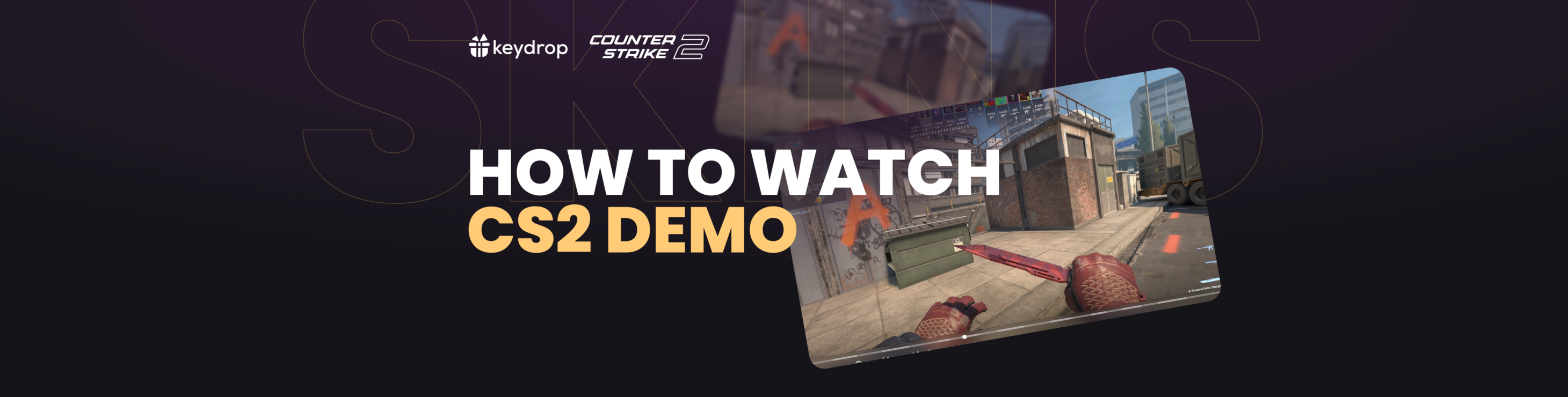

Analyzing your gameplay through demos is a cornerstone of improving in Counter-Strike 2 (CS2). By reviewing your matches, you can identify mistakes, study strategies, and relive key moments. This guide will walk you through recording, locating, downloading, and watching CS2 demos effectively, as well as how Key-Drop can help you make the most out of your CS2 journey.

What Are CS2 Demos and Why Should You Use Them?
CS2 demos are in-game recordings that capture every event during a match. But what makes them so valuable? They let players replay and analyze their games from various perspectives, providing essential insights into decision-making, timing, and mechanics. If you’re looking to improve quickly, watching these replays is non-negotiable.
Players who regularly review their demos often spot patterns in their own playstyle and correct subtle mistakes they wouldn’t notice live. The ability to pause or rewind lets you break down critical rounds and learn from both wins and losses.
How Do You Record a Demo in CS2?
Recording your gameplay in Counter-Strike 2 is simple if you follow these steps:
- Enable the Developer Console in Settings > Game > Enable Developer Console (~).
- Start Recording by opening the console with ~ and typing record demo_name, replacing “demo_name” with your preferred file name.
- Stop Recording by typing stop in the console when you’re finished.
This method is perfect for capturing not only full matches but also specific clutch moments you want to revisit or share. Once you get in the habit of recording games, you’ll build a personal library of learning material.

Where Can You Find Your CS2 Demos After Recording?
After recording, demos are saved automatically to your game’s directory. The default path is:
C:\Program Files (x86)\Steam\steamapps\common\Counter-Strike Global Offensive\game\csgoIf you’ve downloaded demos from external sources, make sure to place them in this folder for easy access in-game. Organizing your demos by date or opponent can make future reviews a breeze.
How Do You Download Matchmaking Demos in CS2?
Wondering how to relive that epic clutch or analyze a tough loss? Downloading matchmaking demos only takes a few seconds:
- Click on the ‘TV’ icon from the main menu to access your recent matches.
- Select the match you want to review and hit ‘Download.’
- The demo file appears instantly in the default directory mentioned above.
Matchmaking demos let you revisit past performances without needing to record manually every time. Just remember, these files can pile up quickly—regularly clean out old demos for more storage.
How Can You Watch and Analyze CS2 Demos Effectively?
Now that you’ve got your demo files, it’s time to dive in. Watching them is just as easy:
- Open the developer console (~) and type playdemo demo_name using your chosen file name.
- For advanced playback controls, enter demoui in the console. This brings up a UI for pausing, rewinding, fast-forwarding, and navigating rounds effortlessly.
Using these tools allows you to zero in on critical moments-like utility usage or positioning errors-so you can improve fast.
For those looking for even more depth in analysis, platforms like Scope.gg offer online demo viewers with advanced replay controls, while Refrag.gg provides 2D visualizations and map overlays for strategic breakdowns.
What Third-Party Tools Are Best for CS2 Demo Analysis?
Serious about climbing the ranks? Third-party analysis tools can give you an edge:
- Scope.gg lets you review demos online without launching CS2.
- Refrag.gg provides drawing tools, utility timers, and a draggable timeline—ideal for team reviews.
Combining these platforms with your in-game reviews unlocks new layers of understanding and improvement.

Final Take
Mastering the recording and analysis of CS2 demos is essential for any player aiming to improve their skills. By knowing how to record, locate, download, and watch your demos, you’re equipped to critically assess your gameplay and make meaningful adjustments. Integrating third-party tools takes this even further—offering deeper insights and faster growth. Ready to elevate your game? Use every tool at your disposal and never stop learning from your own plays.
FAQ
How do I enable the developer console in CS2?
Go to Settings > Game > Enable Developer Console (~).
Where are CS2 demos saved by default?
They are saved in:
C:\Program Files (x86)\Steam\steamapps\common\Counter-Strike Global Offensive\game\csgoCan I watch demos without launching CS2?
Yes, platforms like Scope.gg allow you to watch demos online without opening the game.
How can I analyze my gameplay more effectively?
Utilize third-party tools such as Refrag.gg and CS Demo Manager for advanced analysis features.
Is it possible to download demos of professional matches?
Yes, websites like HLTV.org provide downloads of professional match demos for analysis.