Polski
  English
  Português
  Español
  Français
  Deutsch
  Türkçe
  Magyar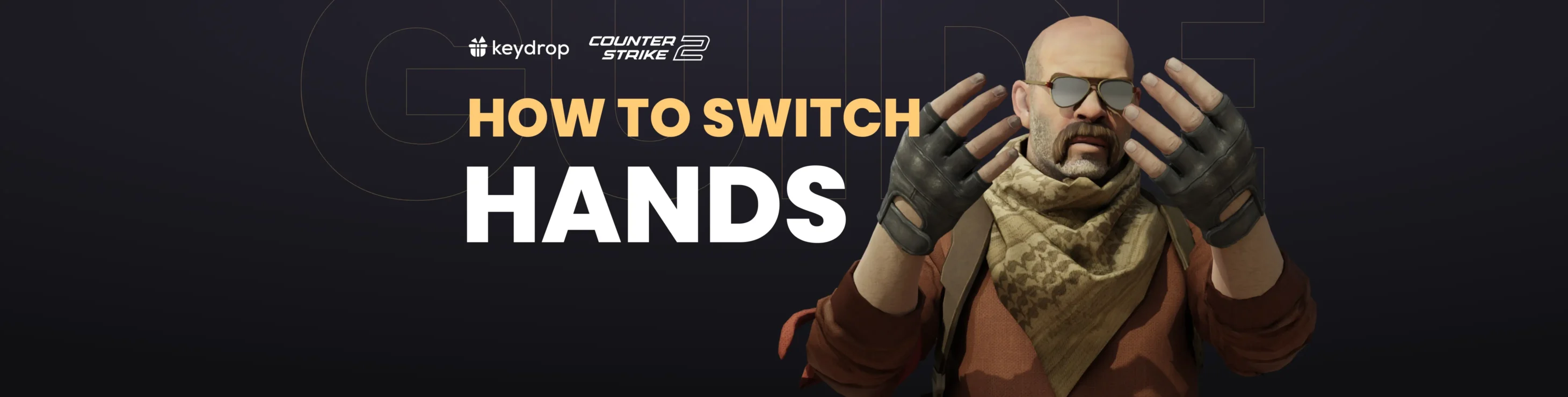

Ever wondered how pro players seem to have that extra edge in CS2? One trick that often goes unnoticed is switching your gun to the left hand. Whether you’re looking to get a better view or just feel more comfortable, switching hands could be the tweak you need. Let’s dive into how it works, how to use the CS2 left hand bind, and why you might want to try it out!
CS2 Left Hand Default Setting
Back in the CS:GO days, console commands were needed to switch hands. The devs made switching hands easier for us in CS2 by adding it into the game’s options. (They also made it so that the pull-out animation shows every time you switch, taking the “quick” out of “quickswitch”, but that’s a complaint for another day).
Anyway — if you want to make your left hand the default, you can do so by changing a simple setting. Go to Settings → Viewmodel, where you’ll find the “Preferred Viewmodel Left/Right Handedness” option. Here, you can set the default side: you’ll always start with your weapon in the chosen hand.
The term viewmodel, by the way, refers to what you can see of your character during matches, so the hands and the currently equipped weapon. You can find out more here: Best CS2 Viewmodel Settings.
CS2 Left Hand Bind: How to Switch Hands in CS2 During Gameplay
You don’t have to stick with your default choice, though: you can use a bind to quickly switch hands during gameplay to give yourself an aiming advantage.
To do so, go to Settings → Keyboard/Mouse and find “Switch Viewmodel Left/Right Hand” on the list. Pick whatever key you want to bind the action to, and you’re ready to go! Every time you press your chosen key during the game, your character will switch hands. Note that, as we mentioned above, there is now a short animation every time you do so.
Why Switch Hands in CS2?
Switching hands in CS2 can make clearing certain angles easier. Doing so dynamically during the game, using a left hand bind to quickswitch, can give you an advantage over players who haven’t developed this habit.
The idea is that your viewmodel, so your weapon, can obscure part of your view, especially when peeking around walls and other obstacles. Players who know how to quickswitch can essentially move the weapon out of the way and get a better view of what’s around the obstacle.
In practice, this is very simple: if you’re peeking towards the left (leaning out to the left with the wall on your right), the gun should be in your right hand. Conversely, when the wall is on your left side, use the CS2 left hand bind to switch to the left and move the weapon out of the way. Give it a try in your next match and you’ll see for yourself, it’s very intuitive.
Alright, that’s all we have for you today! As you can see, switching hands in CS2 is super easy, but it can bring you a serious advantage when playing in competitive matches. Have fun and see you in the next post!